Body energy from your Apple Health records.
TokenVive’s body energy offers a view of how your energy changes through the day. Use it alongside how you feel when planning activity and rest. It is not Garmin’s Body Battery metric or the same algorithm, and it is not a built-in Apple measurement.
TokenVive brings authorized Apple Health sleep, heart rate variability and activity records together with a personal baseline. Your iPhone calculates body energy and shares the result with your paired Apple Watch.
Use the current estimate alongside your history to notice changes in your own routine. A break timer gives you a simple way to make space for rest.
Body energy is a daily wellness estimate, not a medical diagnosis. Treat it as context for your day, rather than a measurement of how you must feel.
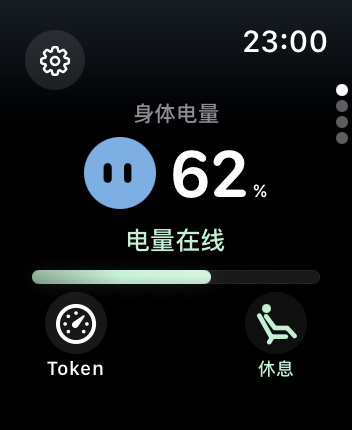
Body energy, readiness and battery mean different things.
| Metric | What it describes |
|---|---|
| Device battery | The electrical charge left in iPhone or Apple Watch. It is separate from your body energy. |
| Body energy | TokenVive’s changing daily estimate from authorized sleep, HRV, activity and personal references. Read it with your trend and how you feel. |
| Readiness | A readiness score generally summarizes preparation for activity, often at a daily checkpoint. It is a different purpose from a continuous energy estimate; scores from different apps are not interchangeable. |
| HRV | A heart-rate-variability record is one input, with its own sampling time. One HRV value is not the final body energy score. |
Use these readings as daily context. They do not establish a diagnosis, a medical threshold or equivalence to another app’s algorithm.
What you need before the first reading.
You need iPhone with iOS 17 or later, authorized Apple Health records and enough personal data to calculate an estimate. Apple Watch with watchOS 10 or later adds health inputs, wrist views and complications.
Your first valid main sleep period can provide an initial energy estimate. Your personal baseline develops as records accumulate. A permission prompt alone does not mean every needed data type is available.
TokenVive is free to download, with in-app membership. Current health updates and new rest or sleep inputs require active membership or remaining trial access. Existing history remains available when membership ends.
Set up body energy on iPhone and Apple Watch.
- Open TokenVive on iPhone. Go to Settings → Apple Health → Health metrics to check the connection and follow the authorization prompts.
- Allow the relevant health inputs. Check TokenVive’s read permissions in Apple Health. Return to the app after data is available.
- Open the paired watch app. Install and open TokenVive on both devices. Health authorization is managed separately on each device.
- Choose the view you use most. Check body energy in the app or use TokenVive’s Components instructions to add a supported widget or watch face complication.
You can also use AI usage tracking on iPhone without a watch. Body energy still depends on available health inputs; the absence of a watch or a record is not treated as zero energy.
Check your first body energy reading.
- Start in the iPhone app. Open the energy view and switch from AI usage to body energy. Check whether an estimate is available before adding a watch face complication.
- Read the update time with the result. Note when the iPhone last updated its estimate. Opening a screen does not establish that it contains a new result.
- Compare the paired Watch app. Open TokenVive on your watch. If its result differs, check the phone’s latest result and the device connection before treating the difference as a change in your energy.
If the iPhone has no estimate, follow the missing-reading checks below. Adding a complication gives you another place to view a result; it does not supply missing health records.
Follow the same sequence for later updates: iPhone calculation → paired Watch transfer → Watch app → complication or compatible Smart Stack widget. Phone widgets and Watch complications have separate configurations and system schedules. The Watch app can help you identify whether a delay is in transfer or only in the complication.
Keep a short record of your first reading.
When checking a new setup, work through these stages in order. Record your own result and when you checked it; include an update time if the view provides one.
| Stage | What to note | What it tells you |
|---|---|---|
| Health inputs | Whether the relevant sleep and other records exist, and whether TokenVive can read them. | Permission and available records are separate requirements. |
| iPhone estimate | A result or an empty state, the time you checked, and any displayed update time. | If there is no phone estimate, start with inputs and access. |
| Watch result | The result in the paired Watch app and when you checked it, before checking a complication. | A phone result followed by an older Watch view calls for a connection or sync check. |
Keep the check times with the results to separate waiting for health inputs from waiting for another device to update. Values read at different times may describe different moments in your day.
Check inputs before interpreting an empty or low score.
No estimate on iPhone
- Read access: check the relevant data types in Apple Health. A requested permission does not prove every type is readable.
- Actual records: check whether sleep, HRV and activity records exist for the relevant dates. Missing records are not low energy.
- Valid main sleep: the first estimate needs a valid main sleep period. An isolated record or a completed permission prompt does not supply it.
- Complete references: return to the app after records are available and read its waiting state. Personal references build with data; do not substitute zeros for unavailable inputs.
iPhone is newer than Watch
Open both paired apps, check the connection and compare the Watch app before the complication. Transfers and widget timelines can be delayed by the system or an offline device.
I slept, but the score is still low
Confirm that the main sleep record was imported and that the result is newer than it. The estimate combines sleep with other inputs, the previous state and personal references. Sleep duration alone does not guarantee a full score.
Rest ended without an increase, or HRV looks different
A completed rest session is evaluated before energy is added; the timer is not a fixed-points reward. HRV is one sampled input, while body energy reflects multiple inputs over time. Compare record times and your own history, without treating a single change as a health diagnosis.
Your records stay on your devices.
Health records and body energy results are stored locally. Health records are not uploaded to TokenVive or AI services.
You can stop reading and clear TokenVive’s health data through Settings → Apple Health → Health metrics. The stop-and-clear flow covers the phone and paired watch; an offline device processes the request when connected. Original Apple Health records are retained, and system permissions remain separately managed.
Read the full privacy policy for the scope of local records, membership verification and support information.