Start with your plan and its dashboard.
| Plan and official view | Period and units | TokenVive coverage |
|---|---|---|
| Legacy Cursor Spending | Monthly billing cycle; read the included pool and spending fields separately. | Supported personal-account fields from the existing dashboard. Team and Enterprise are outside current coverage. |
| The X Subscription Usage | Shared weekly pool; prepaid balance and monthly additional-spending cap are separate checks. | Use the official dashboard. This shared weekly pool has not been verified in TokenVive. |
Sign in with the account used in the editor and check whether the selected account is personal or team. Start from Cursor’s usage documentation.
Compare the same field, unit and date.
| Field | How to compare |
|---|---|
| Raw tokens | Compare the same date, model and available input/output/cache fields. Token totals alone do not show the cost charged to a plan pool. |
| Included pool | Read the pool label and period. Model and pricing rules affect how usage draws from it; two equal token totals can consume different amounts. |
| Cost / Balance | Read the dashboard’s unit and whether it describes recorded cost, an estimate or available credit. Do not interpret every dollar label as a cash balance. |
| Prepaid and spending cap | Prepaid funds and a monthly additional-spending cap are separate from the included weekly allowance. Check their terms and expiry in the official account. |
For supported personal accounts, TokenVive’s AI data analysis shows available input, output and cache token fields by date and model. Cursor message counts are not available. History is grouped by UTC date; match that time zone before comparing it with another chart. A missing history response stays unavailable.
Read the reset date attached to your allowance.
Legacy Cursor allowance follows the monthly billing cycle; The X Subscription uses a weekly pool. Each official dashboard shows the applicable reset date. See Cursor’s reset rules.
A reset countdown in TokenVive belongs to the selected usage limit. Check that selection before comparing accounts. Reopening an editor, refreshing the app or removing local files does not grant additional service allowance.
If you have hit a usage limit
Read the editor’s notice and open the corresponding official dashboard to identify the exhausted pool. Review the provider’s current options there, including whether further use incurs charges. TokenVive does not change your provider plan or authorize extra spending.
Check the pool, prepaid funds and cap in order
First read the included pool’s weekly or monthly reset. Then check any prepaid balance and its expiry: a weekly refresh does not refill prepaid funds. Finally check the monthly additional-spending cap, which can block further paid use even if another balance exists. Read each reset in the account’s displayed time zone instead of assuming local midnight.
Check a supported Cursor account on iPhone.
Current scope: TokenVive’s Cursor connection supports personal-account data returned by Cursor’s existing dashboard. Team and Enterprise accounts are not supported. The X Subscription’s shared weekly pool has not been verified in TokenVive; use its official dashboard for that plan.
- Choose Cursor in Settings. Follow the official sign-in flow for your personal account and return to TokenVive to complete the connection.
- Inspect the usage-limit options. Select the Cursor account in the energy view. Use its arrow to check available usage groups, then read the reset and update time.
- Check supported token history separately. Use AI data analysis to inspect the available period and model data. Usage limits and history can have different coverage.
- Open TokenVive on your paired Apple Watch. Open both apps to sync credentials for supported usage checks. Sign-in and expired-session recovery stay on iPhone.
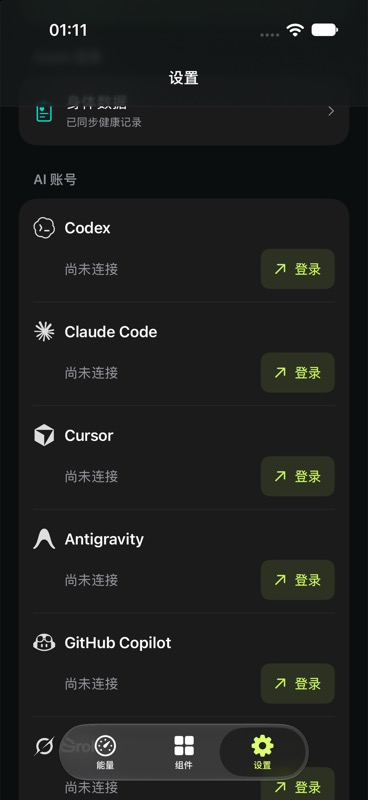
AI connection and refresh features require active TokenVive membership or remaining trial access. The app requires iOS 17 or later, with watchOS 10 or later for Apple Watch. Compare the supported data for each service.
Zero, blocked or an unchanged reading?
- A zero is shown: identify the exact field. Zero remaining allowance differs from zero recorded use or a missing response. Confirm the same plan, account and window in the official dashboard.
- The editor blocks a request: read whether it reports an exhausted pool, a spending cap or a temporary rate limit. A temporary rate limit does not prove the plan is exhausted.
- The reading stays unchanged: check the last successful app update, refresh the supported account, then compare with the official view. If the app has no newer result, reconnect only when requested.
- A new plan or field is absent: use the official view for that field. Check watch or widget timing only after the iPhone app has a fresh result.
Official sources
Provider guidance checked on . Plan rules and dashboard labels can change.
TokenVive is an independent app. Cursor identifies the service discussed here.
Plan and spending distinctions reuse official guidance read November 12–15, 2026. App coverage above is narrower than the set of plans described by Cursor.